Table guide International edition · Symbol pieces
Commander's Manual
One board, one thoughtful move at a time.
Yibu Four Nations focuses on four-hidden-sides military chess. Make each move when you genuinely have time.
16-hour move window · 4 fixed seats · 1 local replay to keep
All four players need not be online at once, but each turn has a deadline. You can read this manual without signing in.
The website follows your browser language on your first visit. Use the Chinese / English switch to change it at any time; your choice carries across pages.
Pieces and ranks
Learn the pieces before their moves. Each seat has 25 pieces of 12 types. Four players form two teams; opposite seats are teammates. Capture the enemy Flags with your teammate while protecting your own.
Four things to remember
- Compare ordinary ranks: the higher piece survives; the lower piece disappears; equal ranks both disappear.
- Bombs have no rank: in combat with any enemy piece, both disappear.
- Engineer is the lowest rank with two special abilities: clearing Barriers and turning along an unobstructed railway.
- Protect your Flag: if it is captured, your seat is eliminated, though your teammate may fight on.
Ordinary pieces: strongest at the top, weakest at the bottom
Read the table downward: a higher ordinary piece defeats a lower one; equal ranks disappear together. Engineer attacks on Barriers, Bombs and Barriers follow special combat rules; see the combat examples.
| Piece | Name | Count | Abilities |
|---|---|---|---|
| CommanderFull beast crest · gold trim | 1 | Highest ordinary rank. Defeats General and every lower ordinary piece; if lost, this seat’s Flag is revealed to all, but the seat is not immediately eliminated. | |
| GeneralBeast-head shield crest | 1 | Second only to Commander; defeats Division Commander and all lower ordinary pieces. | |
| Division CommanderFive stars | 2 | Below General; defeats Brigade Commander and all lower ordinary pieces. | |
| Brigade CommanderFour stars | 2 | Below Division Commander; defeats Regiment Commander and all lower ordinary pieces. | |
| Regiment CommanderThree stars | 2 | Below Brigade Commander; defeats Battalion Commander and all lower ordinary pieces. | |
| Battalion CommanderTwo stars | 2 | Below Regiment Commander; defeats Company Commander, Platoon Commander and Engineer. | |
| Company CommanderOne star | 3 | Below Battalion Commander; defeats Platoon Commander and Engineer. | |
| Platoon CommanderTwo bars | 3 | Below Company Commander; defeats Engineer. | |
| EngineerEntrenching shovel | 3 | Lowest ordinary rank. Survives when attacking a Barrier; may make successive turns at rail intersections along a clear route, but cannot pass through a piece. |
Every piece above can move one step along a road. Only Engineers may deliberately turn at rail intersections on a long rail move. A piece in any Headquarters cannot move again.
Special pieces: not part of the ordinary rank order
| Piece | Name | Count | Abilities |
|---|---|---|---|
| BombLit-fuse bomb | 2 | Movable; has no rank. In any legal combat with an enemy piece, both disappear, including when the target is a Flag. Cannot attack a piece in a Camp. | |
| BarrierElectrified barbed wire | 3 | Immobile. An attacking Engineer survives and removes it; a Bomb and Barrier both disappear; any other ordinary attacker disappears while the Barrier remains. | |
| FlagFaction emblem on a flag | 1 | Immobile. When captured, this seat is eliminated and all its remaining pieces are removed; its teammate may continue playing. |
Chinese and international designs: the same pieces, two appearances
The lobby lets you switch between Chinese and international piece designs; your choice is stored in this browser. The Chinese design shows Chinese names, while the international design uses symbols. Counts, ranks, movement and combat outcomes are identical.
In the international design, the full beast crest with gold trim identifies the Commander, and the beast-head shield crest identifies the General. Division through Company Commanders have five down to one star; Platoon Commander has two bars; Engineer has a shovel. Barrier is depicted as electrified barbed wire, not an extra movable piece.
Four faction designs, identical ranks
The four visible factions are Red · Dragon, Blue · Eagle, Yellow · Lion and Green · Bear. Commander, General and Flag emblems follow their seats. Lower-ranked pieces, Bombs and Barriers share designs. Color and faction do not change strength; rotating your view does not change a piece’s seat.
Red · Dragon
Blue · Eagle
Yellow · Lion
Green · Bear
These factions are visual themes, not official real-world ranks. Red and Yellow form one team; Blue and Green form the other. In a four-hidden-sides game, only identities you are allowed to see are shown: hidden pieces belonging to enemies or your teammate do not reveal their symbols or the Commander’s gold trim.
Combat: what stays, what disappears
Move one of your movable pieces onto an enemy piece’s position to attack it. You may attack enemies only, never your own or your teammate’s pieces; a piece inside a Camp cannot be attacked. The move must be legal before any combat occurs.
- Ordinary pieces: higher rank survives; equal ranks both disappear
- Compare the rank order above, regardless of who initiated combat. If the attacker ranks higher, it survives and occupies the target position. If lower, it disappears and the defender stays where it was. If equal, both disappear.
- Bomb: attacking or defending, both sides disappear
- A Bomb does not use rank comparison. If either side of a legal combat is a Bomb, both disappear, including against a Commander, Engineer, another Bomb, Barrier or Flag. A Bomb attacking a Flag captures it even though the Bomb also disappears. There is no blast damage to surrounding positions; a Bomb cannot attack an enemy in a Camp.
- Engineer clears a Barrier: Engineer survives, Barrier disappears
- Only an Engineer survives after clearing a Barrier. Bomb and Barrier both disappear. When any other ordinary movable piece attacks a Barrier, the attacker disappears and the Barrier remains. Against other ordinary pieces, Engineer is still the lowest rank; against a Bomb, both disappear.
- Flag: immobile; capture eliminates its seat
- Any ordinary movable piece, including Engineer, can capture a Flag and survive. A Bomb can also capture it, but both disappear. Once the Flag’s seat is eliminated, all its remaining pieces are removed; its teammate can keep playing.
- Commander lost: reveal the Flag, not an automatic defeat
- Commander is the highest ordinary rank, but still disappears together with an opposing Commander or Bomb, and also dies when attacking a Barrier. Once a Commander dies, that seat’s Flag is revealed to everyone; its other hidden pieces remain concealed. Losing only the Commander does not eliminate the seat.
Ten combat examples
| Attacker | Defender | Outcome |
|---|---|---|
| General | Division Commander | General survives; Division Commander disappears |
| Company Commander | Brigade Commander | Company Commander disappears; Brigade Commander stays |
| Battalion Commander | Battalion Commander | Both disappear |
| Bomb | Commander | Both disappear; the Commander’s seat reveals its Flag |
| Commander | Bomb | Both disappear; the Commander’s seat reveals its Flag |
| Engineer | Barrier | Engineer survives; Barrier disappears |
| Commander | Barrier | Commander disappears and reveals its Flag; Barrier remains |
| Bomb | Barrier | Both disappear |
| Engineer | Flag | Engineer survives; the Flag’s seat is eliminated |
| Bomb | Flag | Both disappear; the Flag’s seat is eliminated |
Board and movement
Flags and Barriers cannot move; neither can any piece already inside any Headquarters. Other pieces, including Bombs, can use the following routes. Only one piece moves once per turn.
- Road: one step along a drawn connection
- Move only to a directly connected adjacent position; you cannot travel several road segments in one move. Diagonal roads connecting Camps also allow one step. No drawn connection means no arbitrary diagonal move. Engineers use roads the same way.
- Ordinary rail: long moves along a continuous line, no deliberate turn at an intersection
- Commander through Platoon Commander, and Bomb, may travel multiple rail positions in one move if no piece blocks the route. They cannot switch to a perpendicular rail at an intersection. The arc connecting two neighboring sides is itself continuous rail, so a piece may follow that curve; this does not allow arbitrary intersection turns.
- Engineer rail: turns, including multiple turns, are allowed
- Starting on a rail position, an Engineer can reach a destination in one move if a continuous unobstructed rail route connects them. It may turn at rail intersections more than once. It cannot pass through any piece or splice a road segment into the middle of this long rail move.
- Blocking: your own, teammate’s and enemy pieces all stop passage
- An enemy piece may be attacked as the endpoint of this move, but movement cannot continue after combat. You cannot enter or pass over your own or your teammate’s piece. An Engineer may take a different clear rail route around an obstruction.
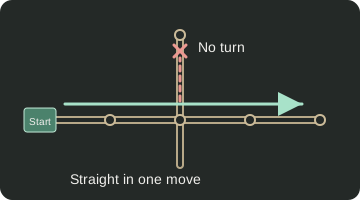
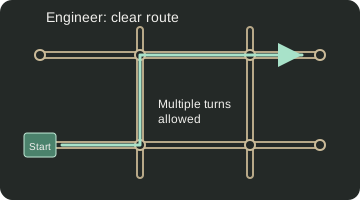
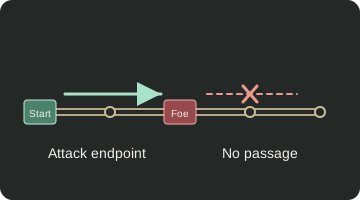
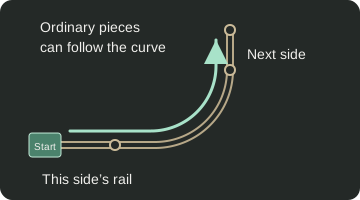
These diagrams show local routes, not the entire board. “Start” marks the origin, arrows show one move and empty circles are vacant positions. Follow the connections drawn on the actual board.
Camps and Headquarters are different
Camp · temporary safety
Each side has five circular Camp positions. An empty Camp can be entered. No piece inside a Camp can be attacked, even by a Bomb. It can move out along a legal route, losing Camp protection when it leaves.
Headquarters · entry stops further movement
Each side has two Headquarters in its last row; its Flag starts in one of them. Any piece inside any Headquarters can no longer move. Headquarters does not protect against attack; an enemy may legally enter and attack.
Three easy mistakes
You cannot “take one road step, then travel far on rail”; “capture a blocking piece, then keep moving”; or “turn with an Engineer, therefore pass through a teammate”. A move must follow either a one-step road connection or a valid rail route in full.
Deployment, Flag reveals and victory
Identify the side facing the center before deploying
The front row is the row nearest the center of the board; the last two rows are nearest your outer edge. Changing seats or rotating your view does not change this relationship.
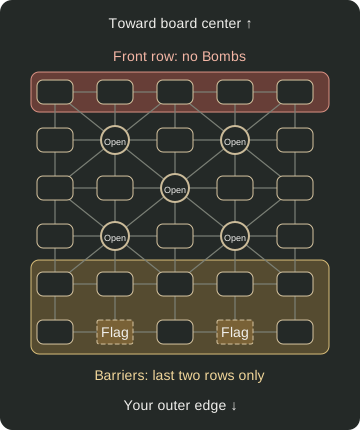
- One Flag: place it in either of your two Headquarters.
- Three Barriers: place them only in your last two rows; the international electrified-barbed-wire design follows the same restriction.
- Two Bombs: never place them in your front row; all other general deployment requirements still apply.
- Five Camps stay empty: they are not used during initial deployment, but empty Camps can be entered after the game starts.
- One position per piece: all 25 pieces stay in your deployment area, with no overlap or change in type counts.
- Consider the other Headquarters carefully: a piece placed there cannot move from the start.
The system checks whether your deployment is legal. After confirming it, select “Complete deployment”; the game starts only when all four seats are ready. You cannot rearrange pieces after the start. Taking over an ongoing game inherits its current board.
Four hidden sides: what can you see?
During play, you see the identities of pieces in your own seat only; even your teammate’s identities are hidden. A Commander’s death reveals that seat’s Flag, while its other hidden pieces stay concealed. Your private marks on hidden pieces are guesses, not identities revealed by the system.
Seat elimination and team result
- Flag capture: when an enemy captures a Flag, that seat is eliminated and all its remaining pieces are removed.
- No legal move: after a successful move, a still-occupied, non-eliminated seat with no legal move is also eliminated, even before its turn. This can happen if only its Flag, Barriers or immobile pieces in Headquarters remain. A legal attack counts as a move even if the attacker would lose that combat.
- Teammate continues: one eliminated seat need not mean the whole team loses; turns skip that seat. Individual surrender likewise eliminates that seat and leaves no vacancy for another player to take over.
- Team settlement: in a normal game with no vacant seats, if both seats on one team are eliminated, the other team wins on the board. If both teams have no occupied, non-eliminated seats, the game ends without a winner. Post-start exits, timeouts, team surrender and draws also involve seats and clocks; see Time and seats and follow the actual table settlement.
Points at a glance
For a normal board result, an original participant gains 3 points for a win or loses 3 for a loss. A player who formally took over through “Match an ongoing game” gains 4 for a win or loses 2 for a loss. The platform has only one kind of points. Exits, timeouts, team surrender and draws follow their separate rules below.
Scope of rules: this guide describes the current rules of this site. Special details on other platforms have not been fully verified against them; this guide does not claim official verification by another platform.
Getting started
“Four hidden sides” means that during play you see only your own seat’s piece identities; teammates do not share identities, except for Flags revealed under the rules. A formal game has four players in two teams, with opposite seats as teammates.
- Prepare an account. Register or sign in from the home page. Registration needs an email you use and a verification code sent to it; you cannot create a normal account without completing verification.
- Select “Match a new game”. Each click joins or creates one game. The system first looks for a not-yet-started table you have not joined with an available seat, preferring the table with the most seated players. If tied, it picks a table at random, then assigns an available seat at random. Only when none qualifies does it create a new game. You cannot choose a teammate, opponent or seat color; the initial layout is a legal random deployment by the system.
- Complete your deployment. After joining, check and adjust your formation or import a saved cloud/local formation, then select “Complete deployment” to mark your seat ready. The game starts and its clock begins only once all four seats are ready; the first player is chosen at random.
- Make one move on your turn. Click your movable piece once, then click the target position. Only the server-confirmed board establishes the move’s result; a local display or click is not proof of success.
Matching fills more populated waiting tables first: three-player tables before two-player tables, and two before one. Tied tables are selected randomly, not by waiting time or points. Tables you already joined will not be matched to you again; open existing games from the lobby.
You may also choose “Fill new-game slots”. In one operation, the system joins multiple remaining tables up to the current backend limit minus the number of new games you already occupy, still preferring more populated waiting tables. You remain in the lobby after success; a short message at the bottom left shows the result. Open each current matchup, inspect your formation and select “Complete deployment” yourself. The system does not mark you ready automatically.
Finish deployment in your existing games before matching again. If you occupy any waiting, not-yet-started table that still needs your deployment confirmation, both “Match a new game” and “Fill new-game slots” will prompt you and return you to that table. You need not wait for other players to join: deploy and confirm first. The batch-fill exception applies only within the same operation: if you had no pending deployment at its start, that operation may join multiple remaining tables, which you then confirm one by one. Once your seats are ready, you may match a new game again. This restriction does not affect either ongoing-game matching entry point.
A formation saved from home is not inserted automatically
“Save formation” offers five account cloud slots or a local .yibu-formation.json download. You can import cloud formations on another device with the same account; you must keep local files yourself. To use one in a formal table, import it before your seat completes deployment. Saving on the home page does not replace a game’s formation automatically.
Want to continue someone else’s game?
Choose “Match an ongoing game”. An ongoing game here means a started table with a vacant seat, not a preset puzzle. The system matches only a vacant seat whose turn is current and whose 8-hour takeover window has not expired.
You first become a candidate. You can view the public board and public action replay, but do not yet occupy the seat, cannot move and cannot see hidden identities or your predecessor’s private marks. If willing to continue, choose “Confirm takeover”. The first player whose confirmation the server accepts gets the seat.
“Fill ongoing-game candidates” adds candidates only; it never takes over automatically. The target number of candidates for this batch is “ongoing-game takeover limit − currently valid occupied ongoing-game seats − existing valid unconfirmed candidates”, floored at zero. Only candidates still eligible for formal takeover count; expired ones do not. If you already have enough candidates, none are added. A short bottom-left message shows the result; if nothing is currently eligible, retry later. You stay in the lobby after success: inspect each game and choose “Confirm takeover” only if you wish to continue.
A single “Match an ongoing game” click presents one candidate at a time. Candidates do not consume formal takeover capacity; you may inspect more even if existing candidates already meet the batch target. Once you reach the limit for formally occupied ongoing-game seats, neither entry point can add more matches. In the lobby, “Available takeovers”, “Pending confirmation” and “Candidates to add” indicate formal takeover capacity left, valid candidates and the additional candidates needed for batch fill, respectively; they do not mean a candidate already occupies a seat.
Multiple people can view the same vacant seat. Each player gets only one ongoing-game matching chance per game, shared across all its vacant seats; leaving candidacy or losing the race does not return that chance. Leaving as a candidate costs no points and does not count toward participation records. There is no additional 30-minute decision deadline, but you cannot exceed that table’s takeover deadline. Closing the page does not automatically withdraw candidacy.
Time and seats
What does the “16-hour move window” mean?
Asynchronous play means all four players need not watch the page together; return in time when your turn comes. An ordinary turn gives the current seat 16 hours by default, not a total game time or a shared clock for teammates.
- Ordinary turn 16 hours
- Counted from the start of that seat’s turn. A valid move passes play to the next seat. The first player’s initial turn starts when the game first begins.
- First move after formal takeover 3 hours
- After taking over the currently acting vacant seat, the resumed turn starts a 3-hour clock, not 16 hours. Later ordinary turns return to 16 hours.
- Vacant-seat takeover window 8 hours
- The game pauses and starts this clock only when it is a vacant seat’s turn; other vacancies do not yet block play. Candidate inspection, withdrawal and competition do not reset or extend these 8 hours.
These are current program rules; there is presently no page setting for players or administrators to change the move deadlines. Check the actual deadline shown at the table. “Move when free” does not mean waiting without limit.
Going offline does not pause the clock; notices do not extend it
Closing the page, signing out or losing your connection does not mean leaving the game and does not stop the server clock. A timeout on an ordinary turn or the first post-takeover move is treated as a post-start timeout departure: lose 9 points, vacate the seat and never rejoin that game.
Four fixed seats do not mean the same four people forever
Red, Blue, Yellow and Green are the four fixed seats at the table; Red and Yellow are one team, Blue and Green the other. Seats, teams and history do not change when players change, nor does rotating your view switch seats. After the game starts, turns normally cycle Red, Blue, Yellow, Green, skipping eliminated seats.
When someone leaves, the table and existing pieces remain. A formal replacement inherits that seat’s current board without redeploying or inheriting the predecessor’s private marks. If nobody formally takes over within 8 hours of a vacant seat becoming active, the game ends with no winner: players still seated gain or lose no points; previous departure or timeout penalties are not refunded.
How many games can you play at once?
New-game matching and ongoing-game takeovers have separate limits, each 5 by default; the combined total is not capped at five. A seated table still waiting to start counts against the new-game limit. An ongoing-game candidate counts against the takeover limit only after formal takeover. Administrators can set each limit separately to an integer from 0 through 100; zero stops new matches of that type without ending already occupied games. The lobby displays the current backend limits, valid occupied games and remaining capacity dynamically; use the figures actually shown there.
Departure, surrender and draw are different
- Exit before the game first starts: only frees the seat; no point deduction or loss record. You may match again.
- Voluntary exit or timeout after the start: the departing player loses 9 points and cannot return to this game. If both teammates leave this way, each loses 9 and each opposing player still seated gains 3.
- Individual surrender: eliminates your seat and removes its pieces, without a vacancy for takeover. Final points follow the board result, not voluntary-exit rules.
- Team surrender: when both teammates are seated, one proposes and the other confirms. Each surrendering player loses 3 points; opponents gain or lose none.
- Draw offer: available on your turn, once per turn. All other still-active players must agree for a draw, which does not change points. Offering a draw does not pause the move clock.
- Skip turn: on your turn, you may skip voluntarily at most five times per player per game. Play passes on and the next active seat gets a fresh clock.
Replay
“One local replay” means a game record you can keep
This does not limit you to saving just one file or one move. A replay file keeps a game’s initial board, moves and final settlement on your device; you can back it up separately. Clearing browser storage is not a substitute for keeping the downloaded file.
- Save after the game ends. In the game sidebar under “Replay and timeline”, select “Save replay locally”. The browser downloads a
.yibu-replay.jsonfile. The home page offers import only, not a save button. - Import from the home page. Select “Import replay” and choose your file. It is read locally, not automatically uploaded to the server or added to a public game-record library. The current limit for a single imported file is 10 MB.
- Navigate moves and events. Play, stop, step backward or forward and seek on the progress bar. Stopping preserves the current board. The sidebar lists player changes and major events; click to jump there. When a player changes, the nicknames of players seated at that moment are shown.
A complete replay is different from an in-progress action replay
The live board and ordinary action replay still conceal identities according to four-hidden-sides permissions; you cannot use them to reveal the other three sides. The ordinary game page does not automatically expose hidden pieces even after the game ends.
The version 2 complete replay generated after settlement includes the full identities of all 25 initial pieces on each of the four sides, actual routes and battles, participants and seat changes, and final settlement. After import, all identities are visible by default. Click a nickname button or double-click one side’s piece to toggle that side’s visibility; use nicknames to change viewpoint and flip the board. These reveal controls are for replay only, never for an ongoing formal four-hidden-sides game.
Old version 1 files can be read, but may contain only the board and moves, with no nicknames, player events or full identities. The page indicates missing information rather than inventing history.
Save promptly; do not rely on email as a fallback
After a game ends, the site schedules a separate complete-replay email for every account that actually participated, including players who left mid-game and formal replacements. Candidate-only viewers are not recipients. Email goes to each account’s currently verified address. Delivery or attachments may be delayed or filtered by the email provider; receipt is not guaranteed. Download and keep your own copy promptly.
Completed game records on the server and their replay-email tasks are retained for 3 days from actual settlement, then automatically removed. Undelivered mail does not extend that period. Account points and cumulative results remain after the records are deleted; downloaded local files are unaffected.
Keep complete replays responsibly
The file does not contain email addresses, passwords or private piece marks, but it does include piece identities, participant nicknames and seat history. Do not casually forward it as if it contained no personal information. Private piece marks stay in this browser and are cleared when the game’s end is confirmed; they are not part of the complete replay.
Account and notices
Account and personal details
Registration requires email verification first. After signing in, you can change your nickname, email and password in “System settings”. A nickname may be changed at most twice in any rolling 365-day period, not twice per calendar year. Changing email or password requires your current password; changing email also requires verification of the new address. After a successful change, you remain signed in on the current device, while old sessions on other devices become invalid.
Signing out ends only your login; it does not leave games in which you hold a seat. There is currently no self-service “Forgot password” recovery. Keep your account and password safe.
Which notices can you configure?
Move emails default to smart reminders, Beijing time and all-day delivery. Notification settings let you choose smart, urgent-only or off, and set a delivery start/end time and your time zone. Equal start and end times mean all day. For example, 22:00–08:00 means an overnight delivery window.
- Smart move reminders default after 1, 6 and 14 hours without moving
- Measured from the start of your turn: if you have not moved, email and on-page reminders are scheduled at 1, 6 and 14 hours. No more prompts after you move or the turn becomes invalid. Emails obey your delivery window; if several checkpoints have passed, only the latest still-valid reminder is sent, not three backlogged emails. Reminders from multiple tables are combined, and emails are spaced at least 15 minutes apart. The 3-hour first move after takeover reaches only the 1-hour reminder checkpoint.
- Urgent-only and off urgent-only: at most 1 hour remains
- Urgent-only schedules an email only when no more than 1 hour remains on your current move, still respecting the delivery window; it does not send normal 1-, 6- or 14-hour move emails. Off stops move emails, but not on-page reminders or the complete-replay email after a game ends.
- On-page and system notices available while the page is open
- While signed in with the page open, it checks the server for notices about every 30 seconds. System notifications additionally require browser permission. A hidden tab or a phone in the background may delay them; returning to the foreground checks immediately and displays notices not yet shown. During the same login, a notice already displayed is not replayed by repeatedly switching away and back, and is not automatically marked read.
The notice bar at the top of the lobby cycles through multiple notices, or you can “Expand list” to see them together. Selecting “Clear” stores the current notice as read, so it does not reappear after refresh or signing in again. Clearing an on-site notice does not cancel move emails.
On-page notices cannot push instantly after the page is completely closed. Server-retained notices are read when you next sign in. Emails are sent independently; the page need not stay open. Having the page visible, opening your current turn or viewing a notice does not cancel its email.
Outside your delivery window, move emails wait until the next allowed period to be checked again. If the turn timed out meanwhile, the later email reports the timeout result rather than another move reminder. Turning off move emails does not disable verification codes or account security emails you request; those do not wait for the move-email delivery window.
Email helps you remember; it does not guarantee your deadline
The current sender is hi@pigrav.com. Add it to contacts and check spam. Emails can be sent with the page closed, but failed delivery, delays, spam filtering or disabled reminders do not pause the clock or refund timeout penalties. Check the deadline at your table yourself.
Sound and backgrounds
Character voices and game sound effects have separate switches
Adjust them in the game sidebar under “Game sound”, or in the lobby under “System settings → Play preferences”. “Character voices” controls spoken lines; “Game sound effects” controls short sounds for ordinary piece selection, movement and combat.
- Both on character voice takes priority
- Selection, movement and combat use a fitting character line first. A few outcomes without a fitting line use a normal short sound instead; both sounds are not layered on every move.
- Only game sound effects on ordinary short sounds remain
- With voices off, short selection, move and combat sounds may still play. With only voices on, only available character lines play.
- Both off game sounds muted
- No character lines or ordinary game sounds play. Board display, move clocks and email settings are unaffected.
Sound switches take effect immediately and are saved in this browser across refreshes. Set them separately on another device or browser.
Choose a background, adjust brightness and rate a map
On a phone, select “Settings” at the bottom of the game page to open background and sound settings; select “Hide settings” to return to the board. On a computer, use the right sidebar.
Under “Board background”, choose “Default grass” or “Random background”. A new browser with no saved choice uses a random background by default; explicitly selected grass remains selected. Random backgrounds are chosen only from currently enabled maps. This browser remembers the choice for a given table, so a refresh does not draw a new one every time. If an administrator disables the map, the next update switches to an available background.
A random map shows its name below it. You can adjust background brightness and select “Like” or “Dislike” to rate the current map. Each account has one rating per map; choosing the other option changes it, and selecting the current option again removes it. Default grass cannot be rated or have its brightness changed.
Background preferences are saved in this browser; map ratings are saved by account. Background and brightness affect only your view, not the board rules or other players’ screens.
Current limits
- Formal games use four hidden sides only. Two-visible and all-visible modes, choosing teammates or selecting seats are unavailable. Visibility controls in a complete replay do not change this limit.
- No preset endgame puzzle library yet. “Match an ongoing game” only takes over the currently acting vacant seat in a game already in progress.
- No other notice channels. There are no WeChat, Feishu or mobile-app push notifications. Browser notifications are not the same as notices delivered after closing the page.
- Some special rules await confirmation. Details on other platforms have not been fully compared; identical behavior is not guaranteed. See “Board and movement” for this site’s stated moves, and follow the actual table prompts.
- Keep your own local files. Cloud formations are stored by account. Downloaded formation and replay files do not automatically sync to other devices; completed records are not kept on the server long-term.
Ready? Return to the board. Move at your own pace, while leaving the next player a clear window of time.
Return home